


How to Change Your Password
If you just want to change the login password, after logged in, please see the screenshots below:
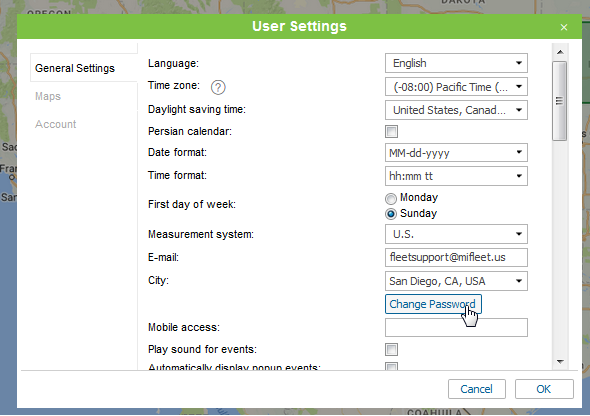
Navigate to the top right corner > Click on your username > User Settings > Then click on Change Password

Click Change Password

Enter the current password > Enter new password in both fields > Click OK to save
Note all new passwords require:
ATLEAST ONE UPPERCASE LETTER A-Z
ATLEAST ONE SPECIAL CHARACTER ~`! @#$%^&* ()_-+= {|:;”‘<,>.?/.

The username and password are CASE sensitive

How to Change Your Password
If you just want to change the login password, after logged in, please see the screenshots below:
Navigate to the top right corner > Click on your username > User Settings > Then click on Change Password
Click Change Password
Enter the current password > Enter new password in both fields > Click OK to save
Note all new passwords require:
ATLEAST ONE UPPERCASE LETTER A-Z
ATLEAST ONE SPECIAL CHARACTER ~`! @#$%^&* ()_-+= {|:;”‘<,>.?/.
The username and password are CASE sensitive